
Guide for Hackintosh : MacOS on Intel!
- Jul 9, 2023
- 2 min read

How to Install macOS on a Windows PC
Are you fond of using macOS but own a Windows PC? Don't worry, you can still experience the sleek and user-friendly interface of macOS on your Windows machine by following a few simple steps. In this step-by-step guide, we will walk you through the process of installing macOS on a Windows PC, allowing you to enjoy the best of both worlds. Let's get started!
MacOS Installation Process on Windows
Before diving into the installation process, it's crucial to ensure that your Windows PC meets the necessary requirements for running macOS. Here's what you'll need:
- A Windows PC with a minimum of 4 GB RAM
- A quad-core processor with virtualization support
- An empty USB flash drive (16 GB or larger)
- Sufficient storage space for the macOS installation
Step 1: Preparing for Installation
The first step is to download and install Balena Etcher, a software that I used to create a bootable Usb for Macintosh.
Step 2: Download Diskimage file for the version of MacOS you want to install. I will use MacOS Mojave, as it works pretty well on my PC.
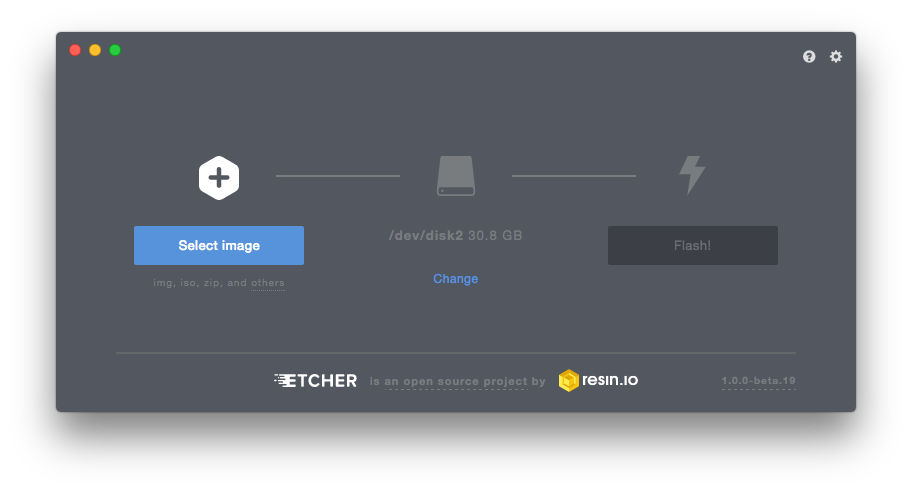
Step 3: Then Flash Your Usb drive with etcher.
This Might take a while. For me it was 30 mins
Step 4: Now Boot your PC from USB
Note that Boot key for your PC might me different, In my lenovo laptop it was F12.
Step 5:MacOS installation
Now Once you are in the installation setup, Click on Utilities and then go to terminal
Now type "Date 121212122018" and hit enter.
Now restart your Pc and boot from usb again.
then go to disk utility and Make space for macOS
Now go through the setup :)
Done
Step 6: Enjoy macOS on Your Windows PC!
Now that you have successfully installed macOS on your Windows PC, you can enjoy all the features and benefits of Apple's operating system without needing a Mac. Explore the App Store, personalize your desktop, and make the most out of the intuitive macOS interface.
So, what are you waiting for? Follow these steps, unleash the power of macOS, and make your Windows PC a versatile platform! Happy computing!


Please Note that You will have to download the disk Image file (.dmg) By yourself
It can be obtained easily from torrent.